Home
 Back
 Forward
 Print
Receipting a Rent Deposit
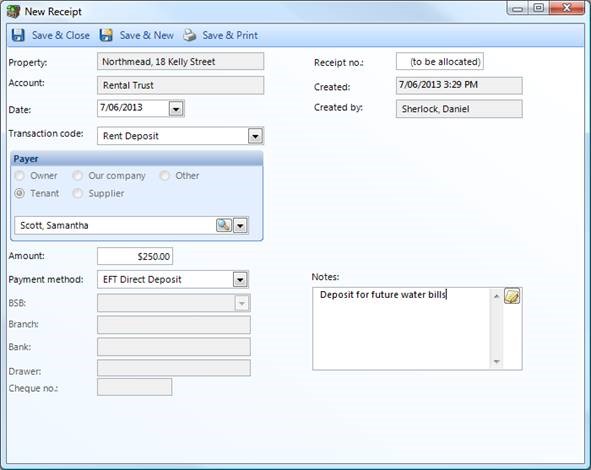
Go to “Property Management”
Click on 
Find the property
Select the date
Select the “Rent deposit” transaction code
Select the tenant, the amount and the payment method.
Note: Ensure that you have the correct tenant selected in the dropdown list as it defaults to the property’s current tenant
Once finished you may either Save & Close, Save & New or Save & Print.
Checking the tenant’s Rent Deposit Ledger
Go to “Trust Account”
Select 
In the orange band, select “Rent Deposit” and enter the tenant’s name in the “Tenant” field. Click “Find Now”

You will now be able to see any rent deposits entries, journal transfers, and rent deposit refunds in the grid.

Journaling Rent Deposit to Rent, Bond, and Tenant Invoices
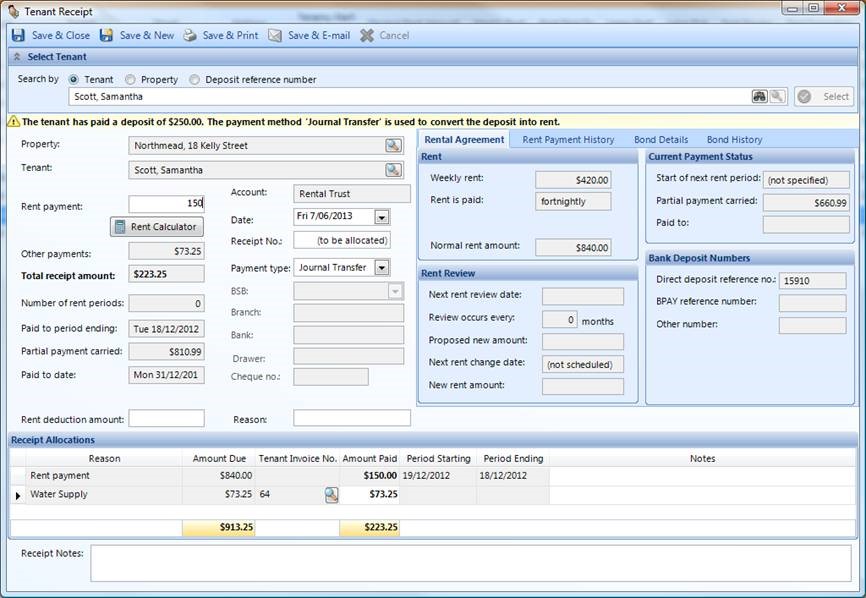
Go to “Property Management”
Select 
Search for the tenant by the tenant’s name, property address, or deposit ref number.
Across the top you will see the message

Now you may allocate the rent deposit to rent, bond, or tenant invoices by typing the amounts into the fields. Save & Close when finished.
Refunding a rent deposit
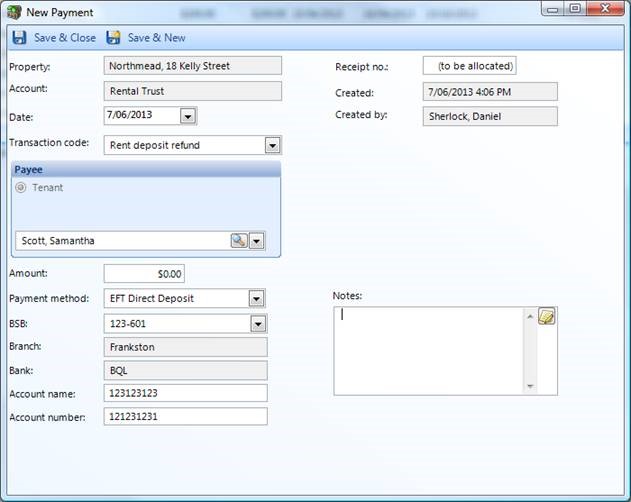
Go to “Property Management”
Select 
Search for the property address
Enter in the date
Select the “Rent Deposit Refund” transaction code from the dropdown
Ensure that the correct tenant is selected
Enter in the amount, payment type and payment details.
Depending on the payment type you choose you may need to write out a cheque or do an electronic transfer to the tenant’s account.
If you have selected EFT Direct deposit you will then need to go to “Trust Account>ABA file EFT payments” and create a new ABA file for the refund. This may then be uploaded to the bank.
If you have done the rent/rent deposit on the day of EOM before you have created the EOM ABA file, it will be included in the ABA file later when you reach that step in the EOM procedure.