 Home
 Back
 Forward
 Print
Work Orders
Work OrdersCreating, issuing, and completing a work order:
The work order guide will guide you through creating work orders, cancelling work orders and paying
Go to “Property Management”
2. Click on “New Work Order”
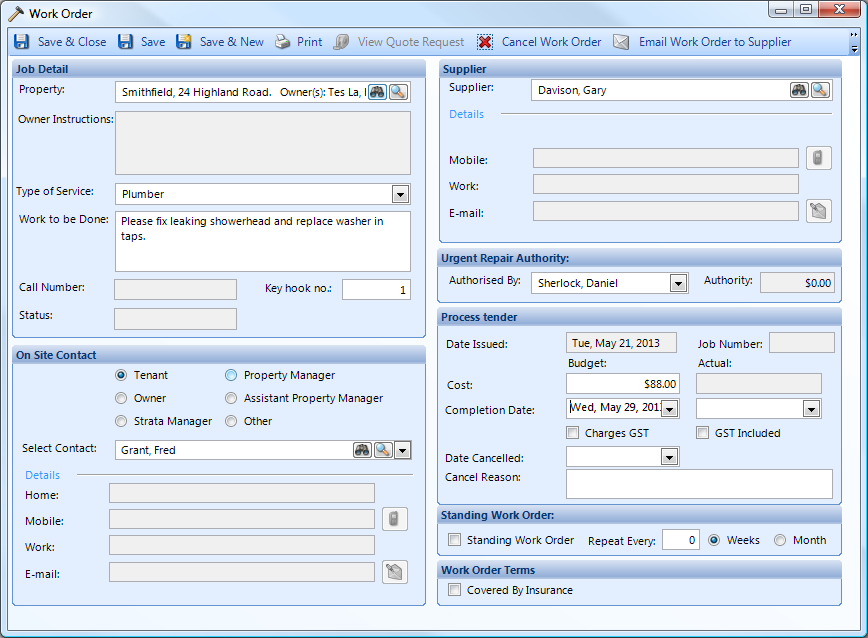
3. Enter in the work order details.
4. Send the work order to the supplier by either email or print & post.
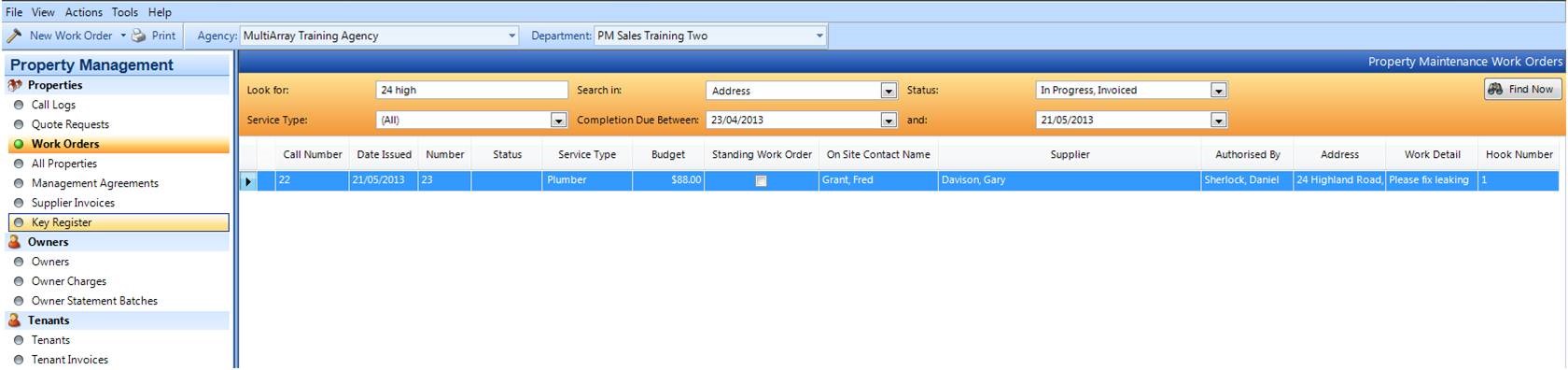
5. In the “Work Orders” view you will notice that the work order has now been recorded.
6. Has the Supplier agreed to do the work?
No- Proceed to step 8.
Yes- Skip to step 9.
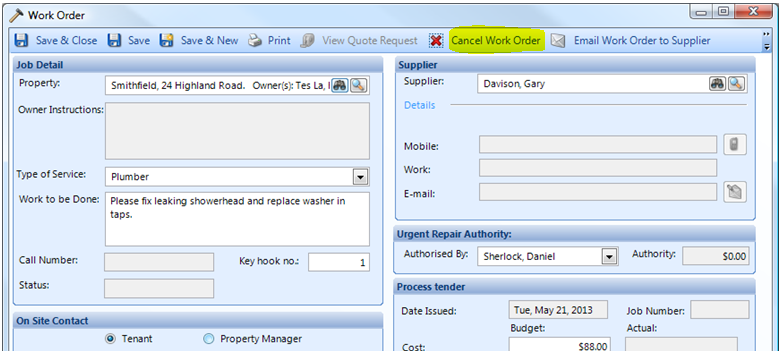
7. Go into the work order for that supplier and click “Cancel Work Order”. You may then create a work order for
another supplier by repeating steps 1-7.
- 8. Now that the work has been done and you have received the invoice from the supplier, it will need to entered into
- the system.
- 9. Go to “Supplier Invoices”
- 10. Select “New Supplier Invoice”
- 11. Enter in the Supplier and Property Address
- 12. Click on the dropdown button in the “Related work order no” field to select and attach the work order created earlier.
- 9. Go to “Supplier Invoices”
Note: You may also create a work order here by clicking on the 
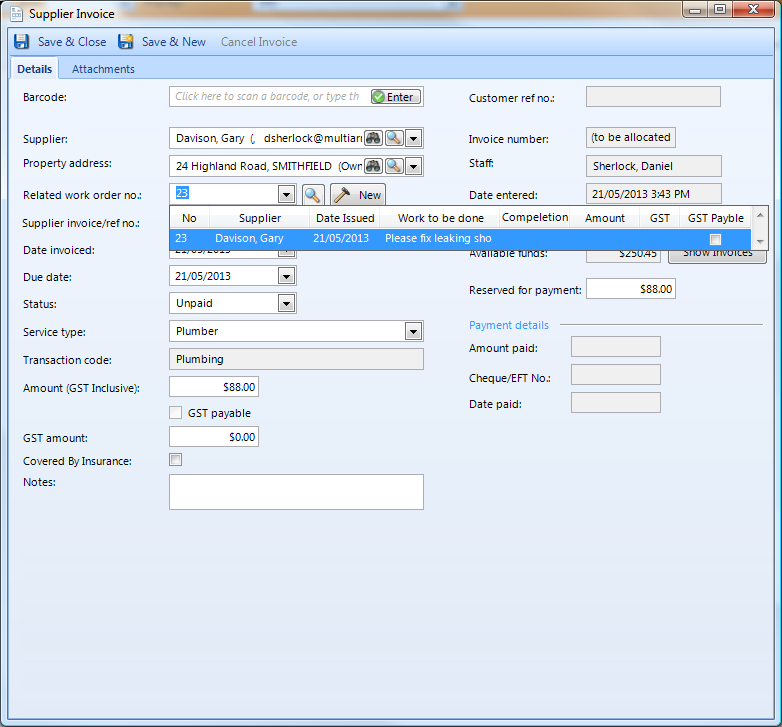
- 13. When attaching a related work order, the “Amount” field in the supplier invoice will automatically fill with the
budgeted amount of the work order. If the actual cost is more or less than the budgeted amount you may edit
the amount manually.
- 14. Once you have finished entering in the details, Save & Close.
- 15. Go back to Property Management>Work Orders and bring up the work order. The status will now have changed to “Invoiced” and there
- will be an hourglass icon on the left hand side.

16. Once there is enough money in the property ledger, pay the supplier invoice in Procedures>Pay Suppliers.
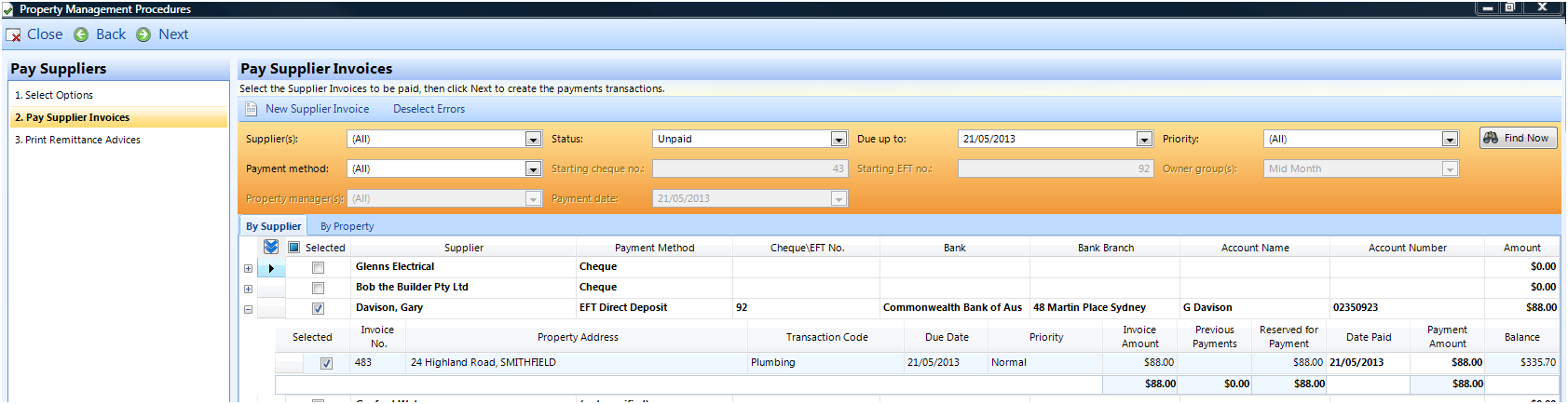
17. When the supplier has been fully paid, the work order status will change to “Paid” and the hourglass will be
replaced with a green tick.
