 Home
 Back
 Forward
 Print
Rent Import File Setup
Rent Import File Setup
Before using the Import Rent Receipts feature for the first time you will need to set up the program to accept your rent import files.
1. Go to Administration
2. In Departments, double click on your Property Management Department
3. In the Property Management Settings Tab, click the Rent Import File Tab
4. Find which column numbers the Date, Amount, Tenant Ref No. and Debits appear in your Rent Import File and enter them here.
5.
Tick the Import file has headers (Ignore first Row) checkbox if your import file has column headers.
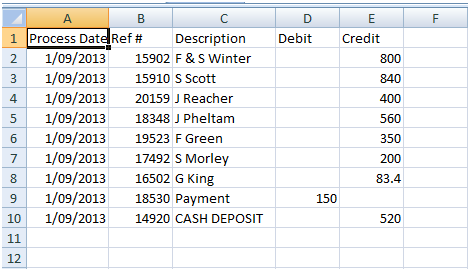
Figure 1: Rent import File (.Csv)
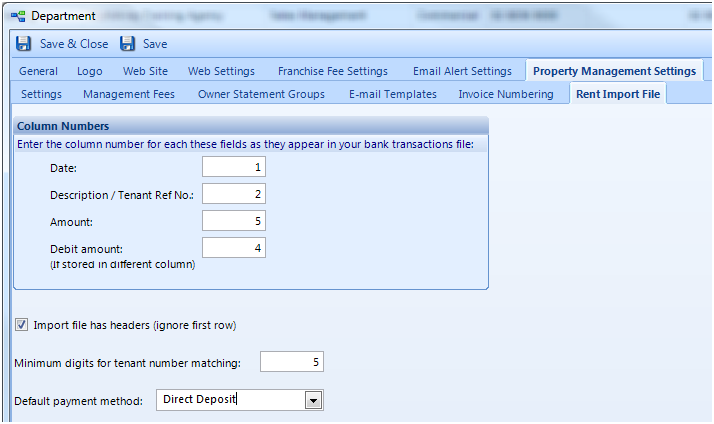
Figure 2 Administration>Department> Property Management Settings Tab>Rent import File
1. In Minimum digits for tenant number matching, enter the minimum digits required in the direct deposit reference number and other number. Tenants whose reference numbers have less digits than the minimum will not be included in the matching.
Note: This defaults to 5 digits. We recommend that you use a minimum of 5 as tenants with reference numbers less than 5 digits risk being matched multiple times in the rent import process, thus doubling up on receipts for that tenant.
2. In Default payment method, select Direct Deposit or Rent Card. This will be the default payment method used each time you import a new rent import file.
3. Save & Close