 Home
 Back
 Forward
 Print
Management Agreements
The Management Agreements guide will assist you with entering agreements into the system
Property Management 
Management Agreements 
New Management Agreement 
The system will always ask you to search for the property before you can proceed to the next step of adding the new Management Agreement.

If the property is not in the system you can then continue to the next step and  which the following card will appear on your screen
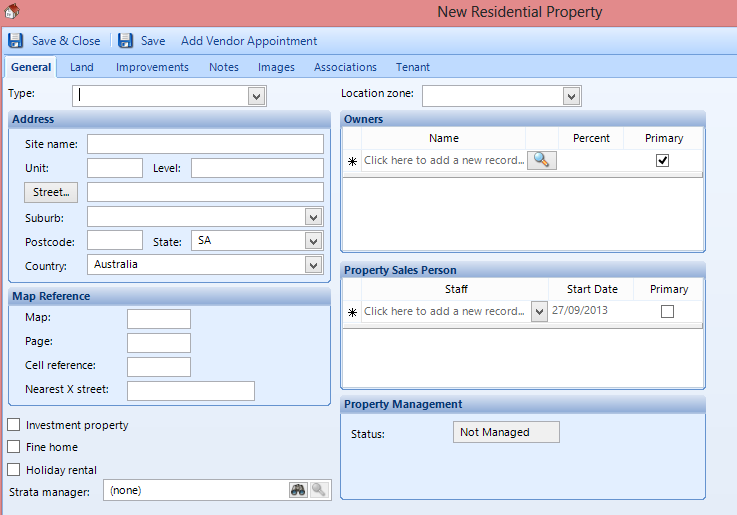
Here you will need to complete the relevant fields
Type: select the type of property you are entering, i.e. house/unit
Street: type in street address i.e. 1234 Marsden Street
Suburb: type in the suburb the property belongs to.
NB: Postcode will automatically appear, always check to see if it is the correct suburb as there are areas which have more than one postcode which is used for Australia Post Boxes.
Owners – add owner which is associated with the property by clicking 
you will be asked to search the contact data base to link the contact to the Management Agreement.
NB: If the contact is not in the contact data base refer to contacts guide
Select the property manager for the property 
Land, Improvements, images tabs, these tabs will need to be completed if you are using the web advertising module.
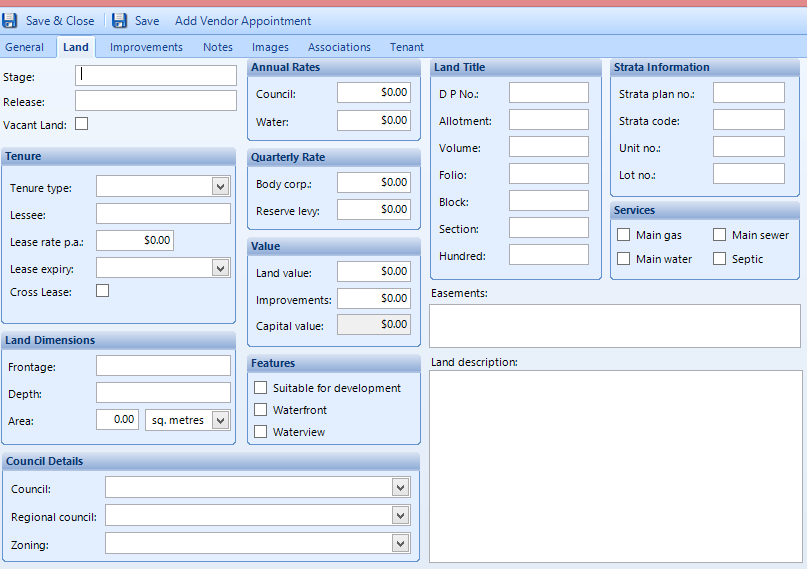
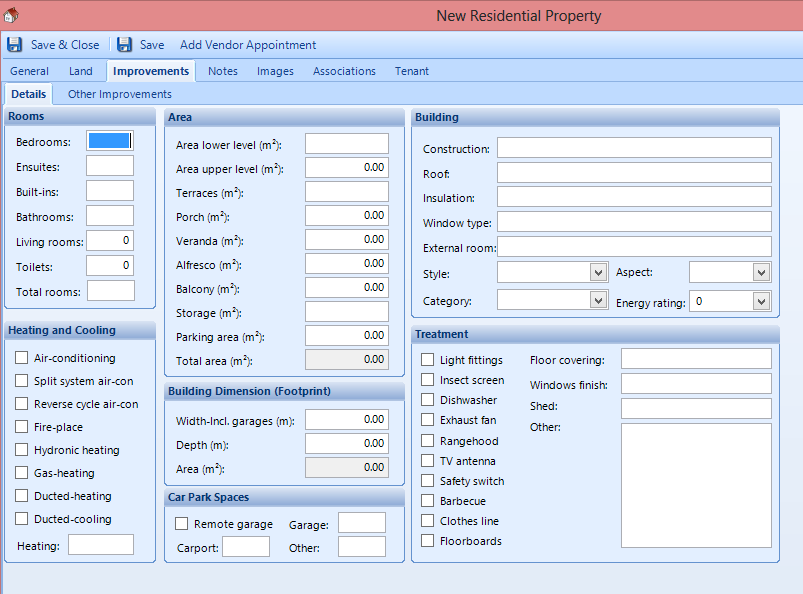
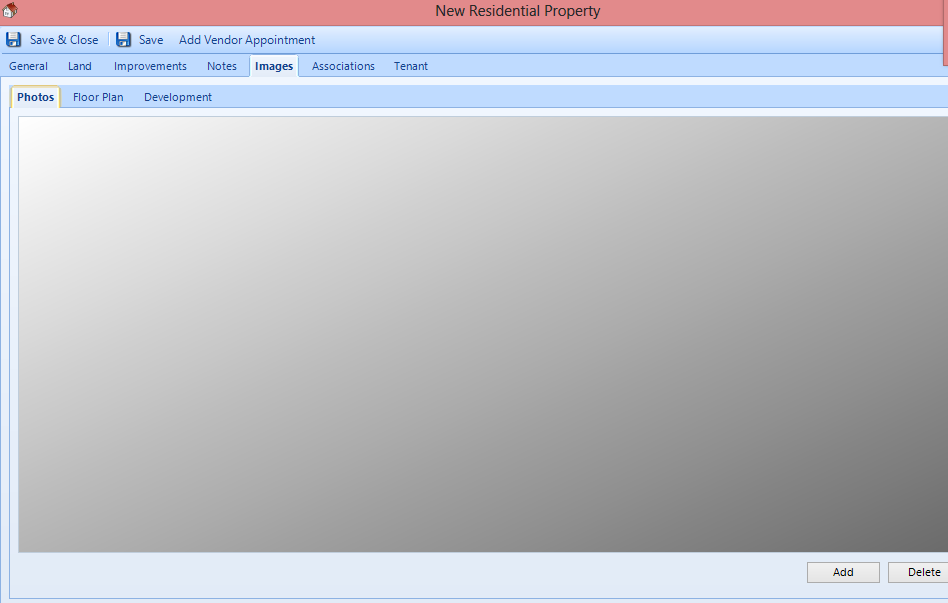
Once you have completed entering all the relevant information click on 
You will then be asked “Do you wish to enter an Appraisal Appointment?”
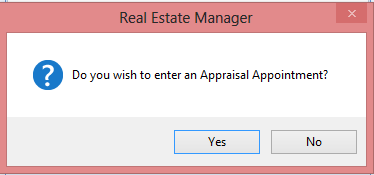
Click on No
The management agreement screen will appear which you be required to complete critical information to the Management Agreement.
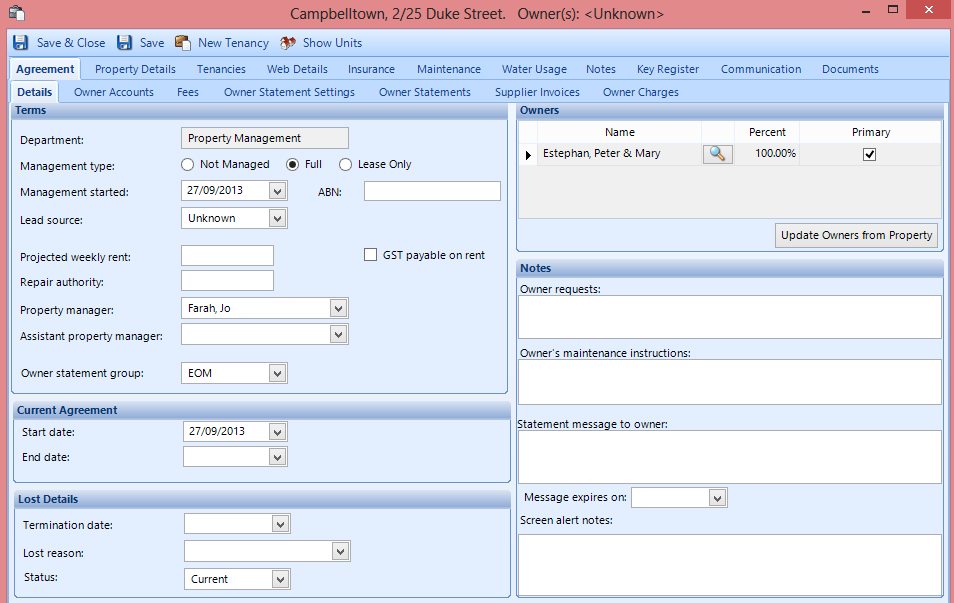
Under the details screen the following Critical fields must be completed
1. Management Start date
2. Projected Weekly rent
3. Repair Authority
4. Owner Statement Groups
Owners Account Tab 
Check to see if the owners preferred method of payment has been selected, i.e. direct deposit
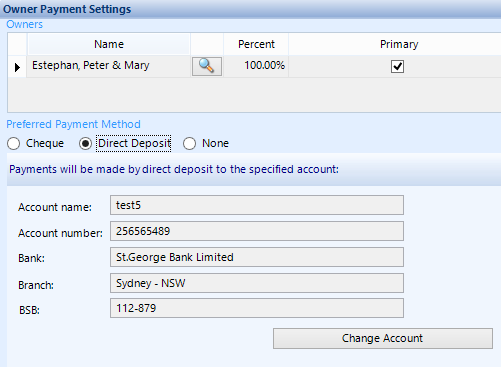
Tip: if the owner has more than one account that they like to switch between you can add all other account details here.
Fees
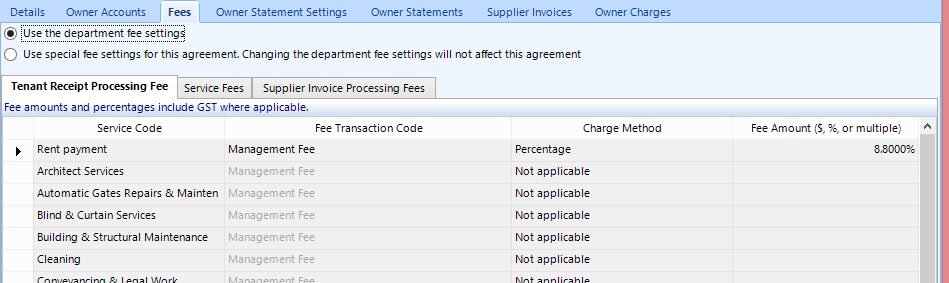
In this screen you can “use department fee settings” or “Use special fee settings for this agreement. Changing the department fee settings will not affect this agreement”
Tip: if you choose “Use Special fee settings for this agreement” you will need to update “Tenant Receipt Processing Fee”, “Service Fees” & “Supplier invoice processing Fees”
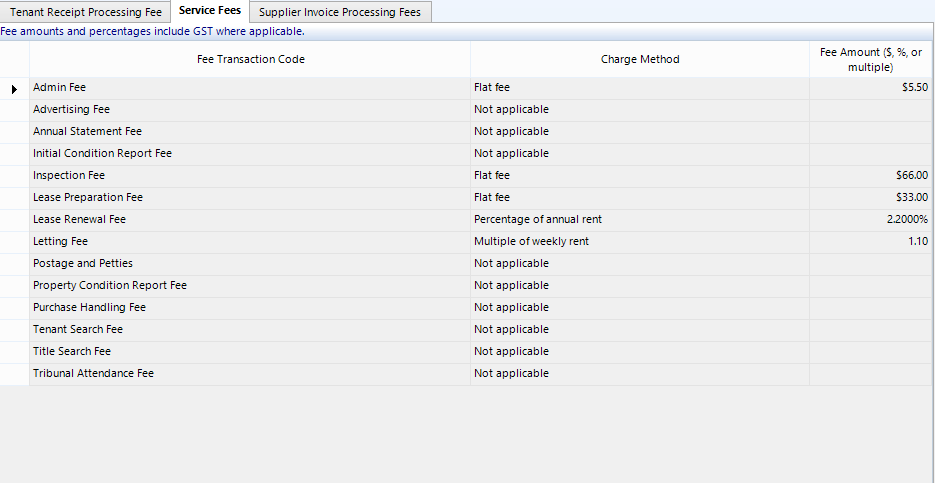
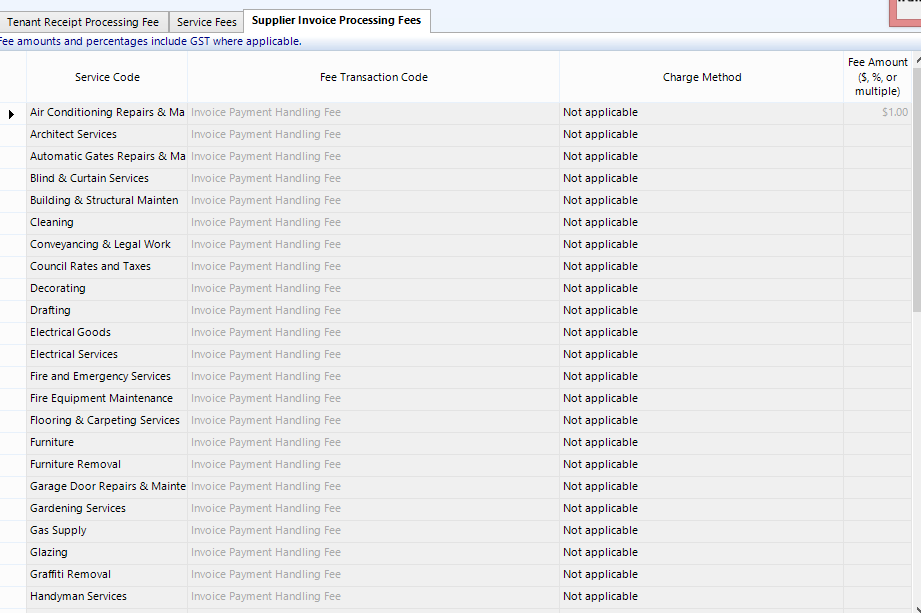
Tip: When you are updating your fees using “Use Special fee settings for this agreement” and you note the following  you must enter a value in the field otherwise you cannot continue.
Now that all the fees have been updated you can save and close the agreement which will then appear in your home screen grid

Follow “New Tenancy” Guide for this process