 Home
 Back
 Forward
 Print
Setup Tables – SMS Templates
Use this area to setup and define Listing SMS and Standard SMS templates.
To create a Listing SMS template
Note: The Listing SMS template is only available when matching a single listing to buyer/s
1. Click on the Administration button.
2. Under Setup, select the Setup Tables option.
3. Select SMS Templates.
4. An SMS template header will appear.
5. In the Grid List area, left click in the white area under the Type heading
6. Select the Listing SMS type from the drop down.
7. Enter a Name and Description.
8. Click on the
 in the Style Sheet grid list area to display the SMS template edit option.
9. Highlight the required merge field from the available list and click on button  to
toadd the Selected fields list.
10. Repeat step 9 to select additional merge fields using the {Space}, {Comma}, {Tab} and {New
Line} merge fields to format your SMS template.
11. To insert text that is not listed as an available merge field, select the {Custom} merge field and
type the required text in the Custom Text box. Click on the  button to add to the Selected Fields list.
12. The Application output layout will display the format of the message to be merged
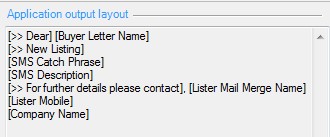
13. If you wish to delete a field from the template highlight the field in the Selected fields list and
click on the  button. Alternatively click on
 button to remove all fields in the Selected fields box.
button. Alternatively click on button to remove all fields in the Selected fields box.14. Note: The Application output layout will refresh when new fields are added to the Selected
Fields list.
15. Click on
 or the
 to save your Listing SMS template.
To create a Standard SMS template
1. Click on the Administration button.
2. Under Setup, select the Setup Tables option.
3. Select SMS Templates.
4. An SMS template header will appear.
5. In the Grid List area, left click in the white area under the Type heading
6. Select the Standard SMS type from the drop down.
7. Enter a Name and Description.
8. Click on the
in the Style Sheet grid list area to display the SMS template edit option.9. Highlight the required merge field from the available list and click on button to
button toadd the Selected fields list.
10. Repeat step 9 to select additional merge fields using the {Space}, {Comma}, {Tab} and {New
Line} merge fields to format your SMS template.
11. To insert text that is not listed as an available merge field, select the {Custom} merge field and
type the required text in the Custom Text box.
12. Click on the
button to add to the Selected Fields list.13. The Application output layout will display the format of the message to be merged.
14. If you wish to delete a field from the template highlight the field in the Selected fields list and
click on the button. Alternatively click on button to remove all fields in the Selected fields box.
button. Alternatively click on button to remove all fields in the Selected fields box.Note: The Application output layout will refresh when new fields are added to the Selected Fields list.
15. Click on or the to save your Listing SMS template.
or the to save your Listing SMS template.